It seems tapping literally any key, even the touchpad, turns on modern-day MacBooks (in this case a MacBook Air 13" M3 2024). Is there a way to disable this "feature"? What if I want to clean the keyboard (which should be done when power is off)? Or anything else that requires pressing keys while a laptop is off? Do I need to drain the battery power just to do this?


Got a tip for us?
Let us know
Become a MacRumors Supporter for $50/year with no ads, ability to filter front page stories, and private forums.
Disable auto-power on when touching literally anything on the keyboard
- Thread starter con
- Start date
- Sort by reaction score
You are using an out of date browser. It may not display this or other websites correctly.
You should upgrade or use an alternative browser.
You should upgrade or use an alternative browser.


Just clean the keyboard while the laptop is on.
I've done it for years; doesn't seem to have done any harm. I lock the screen so that the random key presses just go into the password box where they do nothing. Touch-ID to unlock (or clear the box).
I've done it for years; doesn't seem to have done any harm. I lock the screen so that the random key presses just go into the password box where they do nothing. Touch-ID to unlock (or clear the box).
when my MacBook is on, i use KeyboardCleanTool app which disables all the keys while i clean it and then you use the trackpad to click on finish when you are done.
 folivora.ai
folivora.ai - Great Tools for your Mac!

It seems tapping literally any key, even the touchpad, turns on modern-day MacBooks (in this case a MacBook Air 13" M3 2024). Is there a way to disable this "feature"? What if I want to clean the keyboard (which should be done when power is off)? Or anything else that requires pressing keys while a laptop is off? Do I need to drain the battery power just to do this?
You don't need to have the power off to clean the keyboard. That's a myth. Just clean it.

On a slightly related note there's this, though it doesn't appear to cover pressing any button.

 www.macrumors.com
Stop Your MacBook Turning On Every Time You Open the Lid
If you've ever opened your MacBook's lid just to clean the display and keyboard, only to have it spring to life unexpectedly, here's a...
www.macrumors.com

Being unable to truly turn off apple silicon Mac is also a gripe of mine. Last time I travel overseas, I brought my MacBook Pro with me expecting to do some work with it. It is unsafe for me to leave it on my desk at home. I ended up not using it much, but have to recharge it every 5 days or so as I couldn’t truly turn it off (this means no button press will turn it on except power button, aka Touch ID button). This is unrelated to cleaning keys but an issue for me nonetheless.

An elegant and efficient solution. I also tap the brightness off before I mop the screen.Just clean the keyboard while the laptop is on.
I've done it for years; doesn't seem to have done any harm. I lock the screen so that the random key presses just go into the password box where they do nothing. Touch-ID to unlock (or clear the box).
Being unable to truly turn off apple silicon Mac is also a gripe of mine. Last time I travel overseas, I brought my MacBook Pro with me expecting to do some work with it. It is unsafe for me to leave it on my desk at home. I ended up not using it much, but have to recharge it every 5 days or so as I couldn’t truly turn it off (this means no button press will turn it on except power button, aka Touch ID button). This is unrelated to cleaning keys but an issue for me nonetheless.
Earlier this year, I shut down my MBP and went travelling for nearly a month. When I came home, I turned it back on and it still had loads of battery. Once shut down, it should use virtually no battery at all.
I don't understand why you kept having to charge it; just disconnect it from power, shut it down and close the lid. It won't come on by itself.
If its power didn’t drain that crazy by itself like that I would not complain. I don’t know why I have to recharge it so often either. Went to a local Apple Store and they didn’t find any hardware problem. For now I just recharge whenever I can and keep in mind charging it once in a while when I am not using it.Earlier this year, I shut down my MBP and went travelling for nearly a month. When I came home, I turned it back on and it still had loads of battery. Once shut down, it should use virtually no battery at all.
I don't understand why you kept having to charge it; just disconnect it from power, shut it down and close the lid. It won't come on by itself.

The feature/behavior/issue/what-have-you has been a longstanding discussion/complaint. Some of the other/previous threads:
On Intel-based MacBooks, you could disable it via modifying the NVRAM parameters. On Apple Silicon, that’s no longer possible.
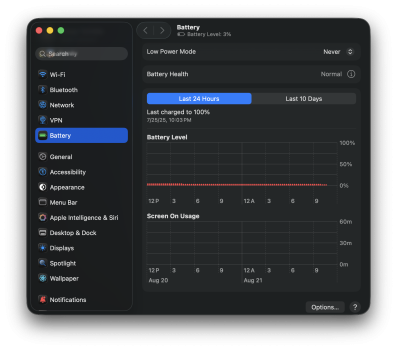
Screenshot was captured 8/21/25, 10:51 AM
And this has been consistently true.
On Intel-based MacBooks, you could disable it via modifying the NVRAM parameters. On Apple Silicon, that’s no longer possible.
I don’t know what’s up with yours, but (as my own anecdote) my M1 Pro MBP lasts nearly a month in sleep.Being unable to truly turn off apple silicon Mac is also a gripe of mine. Last time I travel overseas, I brought my MacBook Pro with me expecting to do some work with it. It is unsafe for me to leave it on my desk at home. I ended up not using it much, but have to recharge it every 5 days or so as I couldn’t truly turn it off (this means no button press will turn it on except power button, aka Touch ID button). This is unrelated to cleaning keys but an issue for me nonetheless.
Earlier this year, I shut down my MBP and went travelling for nearly a month. When I came home, I turned it back on and it still had loads of battery. Once shut down, it should use virtually no battery at all.
I don't understand why you kept having to charge it; just disconnect it from power, shut it down and close the lid. It won't come on by itself.
If its power didn’t drain that crazy by itself like that I would not complain. I don’t know why I have to recharge it so often either. Went to a local Apple Store and they didn’t find any hardware problem. For now I just recharge whenever I can and keep in mind charging it once in a while when I am not using it.
Screenshot was captured 8/21/25, 10:51 AM
And this has been consistently true.
Last edited:
The problem with sleep is that it occasionally doesn't work correctly. Some app could prevent or delay sleeping, or it could be waking up too often to check for emails or something. A USB mouse with some lights can show you when your Mac is sleeping and when it isn't, since Apple took away the indicator light.I don’t know what’s up with yours, but (as my own anecdote) my M1 Pro MBP lasts nearly a month in sleep.

Make sure in the settings you have Wake for Network Access for Power Adapter Only. This made a world of difference for me when I was on battery. (Settings --> Battery --> Options button on bottom right).

I do this :It seems tapping literally any key, even the touchpad, turns on modern-day MacBooks (in this case a MacBook Air 13" M3 2024). Is there a way to disable this "feature"?
Press & Hold the Left Control & Command + the Right Shift for 7 seconds.
Don't release them - now press & hold the power button (continuing to hold the other keys) for another 7 seconds.
The Mac should shut down - hold all those keys for a couple of seconds afterwards.
It should now only respond to the power button.
Tested here just now on an MBA 15 M3 albeit on Sonoma; but used on different / newer at work.
Last edited:
The reason this "works" is because this key combo puts the Mac into DFU mode. The Mac is still technically powered on and is waiting for input from the DFU port, though.I do this :
Press & Hold the Left Control & Command + the Right Shift for 7 seconds.
Don't release them - now press & hold the power button (continuing to hold the other keys) for another 7 seconds.
The Mac should shut down - hold all those keys for a couple of seconds afterwards.
It should now only respond to the power button.
Tested here just now on an MBA 15 M3 albeit on Sonoma; but used on different / newer at work.
How to revive or restore Mac firmware - Apple Support
Rarely, a Mac with Apple silicon or the Apple T2 Security Chip might experience an issue that requires its firmware to be revived or restored by another Mac.
On the affected Mac, enter DFU mode:The reason this "works" is because this key combo puts the Mac into DFU mode. T
On the affected Mac, enter DFU mode:
Press and hold the power (Touch ID) button for up to 10 seconds, until the Mac turns off. If the Mac turns on instead, repeat this step.
Press and release the power button, then immediately press and hold all four of these together on the built-in keyboard:
Control ⌃ on the left side of the keyboard
Option ⌥ on the left side of the keyboard
Shift ⇧ on the right side of the keyboard
Power button
Command Option vs Ctrl Option : but if it "works", what is the problem ?.
Register on MacRumors! This sidebar will go away, and you'll see fewer ads.