Become a MacRumors Supporter for $50/year with no ads, ability to filter front page stories, and private forums.

Zondar

macrumors newbie
Original poster
Dec 1, 2025
5
0
Hello,

I'm trying to connect an ethernet device to my Mac Studio. It's a GPIB to ethernet bridge, connected over ethernet directly to my mac via a crossover cable. The device should connect automatically via DHCP, whereupon I should be able to open a web page to it. The mac's networking panel says ethernet is not connected, but everything else looks normal.

This all works perfectly fine on my linux machine and also a W10 box, but not my mac. Typing in its http address, which I know, does not work (it just hangs with no response). It's like there's no connection at all. Is there some basic setting that I'm missing, perhaps a security issue or something?

Thank you for any tips you may have!
 
Thank you for your reply.

A crossover is the correct cable for this, but I tried a normal one too just in case, without success.

It's baffling. As I said, it worked right away with linux and W10, but the "it just works" mac? No. :confused:
 
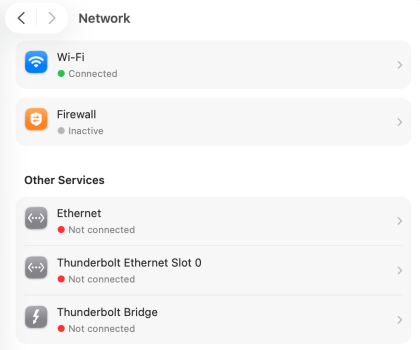
Is there an active ethernet interface showing in Network settings?

Screenshot 2025-12-02 at 12.33.33 PM.png
 
  • Like
Reactions: Basic75
The device should connect automatically via DHCP, whereupon I should be able to open a web page to it.
Wait, does the device expect to see a DHCP server on the other end, or does the device itself offer DHCP to the computer you are connecting?
 
It's a "Kiss488" (easily searched for). There are down-loadable instructions, but they are only really helpful for windows users. It worked right away without any issues on linux and W10.

I'm not an expert on this topic, but it (typically) expects a DHCP server on the computer to negotiate a connection to it. However, that's not mandatory, since the device tells you via blinking an LED what http address it can be found at (e.g. 169.254.1.80), and then you can just type the address into a browser and it will serve web pages to the computer. Except no connection is actually enabled.

chabig: Ethernet shows up as "not connected" just like in your image.

Thank you for any assistance.
 
I have found https://www.hxengineering.com/downloadables/KISS-488_User_Guide_Rev_2.11.pdf

You might find it easier if you connect the Kiss488 to your router (assuming it is acting as a DHCP server) so that the router tells the Kiss488 to use an IP address in the same range as your LAN. You can then find the IP address (either arp -a or from router web interface) and see if you can 1) ping it and 2) use your software (is that just a web browser?) to talk to it.

If connected to the Ethernet on your Mac, you will need to ensure that the Mac is using an address close to the self-assigned IP address of the Kiss488 - e.g. 169.254.1.81. Then you should be able to ping 169.254.1.80

Disclaimer: I have never used one of these, just skim read the manual.
 
I have found https://www.hxengineering.com/downloadables/KISS-488_User_Guide_Rev_2.11.pdf

You might find it easier if you connect the Kiss488 to your router (assuming it is acting as a DHCP server) so that the router tells the Kiss488 to use an IP address in the same range as your LAN. You can then find the IP address (either arp -a or from router web interface) and see if you can 1) ping it and 2) use your software (is that just a web browser?) to talk to it.

If connected to the Ethernet on your Mac, you will need to ensure that the Mac is using an address close to the self-assigned IP address of the Kiss488 - e.g. 169.254.1.81. Then you should be able to ping 169.254.1.80

Disclaimer: I have never used one of these, just skim read the manual.

Unfortunately, I can't plug it into my router since that's not accessible from where it's needed by the instrument it will talk to.

I'm not sure why the two IP numbers need to be "close to each other" - can you explain? Also, I can set the IP address of the kiss488 manually. Are you saying I should try to set it to a number "close to" the IP address of my mac?
 
Is the bridge, u may have to download a driver and/or requires configuration.

Odd the Studio doesn't have an ethernet port.
 
The studio does have an ethernet port. I'm trying to plug the kiss488 directly into it via a cross-over cable. However, when I try that, ethernet is "not connected" per the networking settings. That's the problem. I must be missing something?
 
I'm not sure why the two IP numbers need to be "close to each other" - can you explain? Also, I can set the IP address of the kiss488 manually. Are you saying I should try to set it to a number "close to" the IP address of my mac?
Both the kis488 and your Mac use DHCP to find an IP address. This fails with 2 devices directly connected (unless one is a DHCP server) and they self assign an address in the 169.254.0.0/16 range. If they both have a 255.255.0.0 network mask, any address in the range will work. In case either is allocating 255.255.255.0, it is safer to make sure they are in the same 255.255.255.0 range.

So check to see what System Settings > Network > Ethernet says on your Mac. If it is finding something with a MAC (media access control) address on the other end of the cable I would expect you Mac to show "Using DHCP", IP address 169.254.x.y and subnet mask 255.255.0.0. That should be sufficient, if not could try manually setting the IP address to be in the same 255.255.255.0 range as the kis488.

What does your Mac show there?

Once you have an IP address like that, you should be able to use the Terminal command ping 169.254.1.80.

Other ideas:

Assuming the cable is ok (and crossover or not should not matter), you could configure a DHCP server on your Mac - but that is getting into a whole lot deeper level of networking.

Easier might be to use an old router you have. Connect Mac and kis488 to the router's LAN ports and check that DHCP is enabled. Both will then get compatible (same subnet) IP addresses.
 
I found this list online. Not all of them apply here, but look through the list and see if it helps you at all.

Here are the most common reasons why your Mac Studio shows “Ethernet → Not Connected” even though you’ve plugged in a cable – ranked from most likely to least likely on modern Macs (especially M1/M2/M4 Mac Studio):
  1. The other end of the cable isn’t plugged into anything active Most frequent cause by far. Plug the other end into your router/switch/modem and check that the port’s LEDs light up. If you’re plugging into a dock or Thunderbolt/USB-C Ethernet adapter, make sure the dock/adapter is powered and connected properly.
  2. Bad/damaged Ethernet cableTry a different known-good cable (Cat5e or better). Even new cables can be defective.
  3. Wrong port on the Macडी Studio
    • Mac Studio (M1/M2 Ultra) has multiple Gigabit ports on the back + a 10 GbE port pair on higher-end models.
    • The built-in ports auto-negotiate, but some cheap or very old routers negotiate poorly. Try every rear Ethernet port – sometimes one port “likes” your router more than the others.
  4. Link speed / duplex mismatch or manual override Rare on modern gear, but go to:System Settings → Network → Ethernet → Advanced → HardwareMake sure it’s set to “Configure: Automatically”. If someone forced it to 100baseTX or manual duplex, it will fail to connect.
  5. Mac is expecting a specific type of connection (e.g., static IP or VLAN tagging) Check: System Settings → Network → Ethernet
    • If it’s set to Manual IP and there’s no DHCP server on that cable, it will say “Not Connected” or “Self-assigned IP”.
    • Set it back to “Using DHCP” unless you specifically need static.
  6. Cable is plugged into a dead or disabled port on the router/switch Try a different port on the router/switch. Some ISPs disable unused ports or require registration.
  7. Thunderbolt/USB-C Ethernet adapter issue (if you’re using one)
    • Cheap third-party adapters often don’t work well with Apple silicon.
    • Known good ones: Apple’s own Thunderbolt-to-Gigabit, Belkin USB-C to 2.5 GbE, CalDigit, OWC, Sonnet, etc.
    • Try the built-in rear ports instead of the adapter to test.
  8. macOS network stack glitch Quick fixes (in order):
    • Unplug the cable → turn Ethernet off in Network settings → plug cable back in → turn Ethernet on.
    • Restart the Mac.
    • Reset network settings: delete /Library/Preferences/SystemConfiguration/ folder (safe, but you’ll have to re-enter Wi-Fi passwords).
    • Boot into Safe Mode to test.
  9. Hardware failure (very rare) I’ve only seen a dead Ethernet controller a handful of times on Mac Studios. If nothing works in any port and a known-good cable + router works on other devices, contact Apple (it’s usually covered under warranty/AppleCare).
 
Register on MacRumors! This sidebar will go away, and you'll see fewer ads.