Become a MacRumors Supporter for $50/year with no ads, ability to filter front page stories, and private forums.

jdhidalgo

macrumors newbie
Original poster
Nov 20, 2025
3
0
So XFinity WiFi lets you connect to nearby XFinity hotspots. I saw this video which shows how to use this internet to turn your laptop into it's own hotspot through an external router.

When following these instructions I was able to get the router to show the network, but I am not able to actually get the internet to flow from the macbook to the router.

The macbook doesn't have an ethernet port so I am using an adapter to go from usb-c to ethernet.

If you have done this before, or could help me troubleshoot, I would really appreciate it.
 
ISP Cable Modem > Main Router > eth > Mac > Enable Internet Sharing > Config & share WiFi > Activate hotspot <<< WiFi clients connect
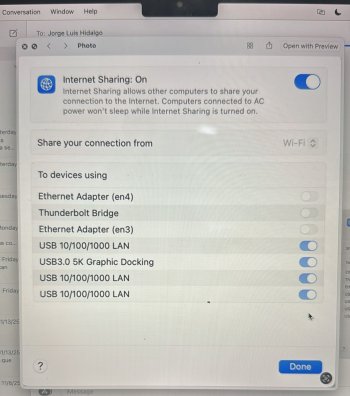
In the video I linked it said to set a static address in the router settings and then manually set the ipv4 settings in the macbook settings. Is that necessary? Or should I leave everything as default and automatic. Also, in the image attached is what I set my 'Internet Sharing' settings to. Please let me know if I did anything wrong.
 

Attachments

  • WhatsApp Image 2025-11-20 at 18.24.07_a8c05191.jpg
    WhatsApp Image 2025-11-20 at 18.24.07_a8c05191.jpg
    578.8 KB · Views: 5
Reread the linked page I sent. You have the settings backwards. Your Mac should be sharing from Ethernet to devices using WiFi.
 
Reread the linked page I sent. You have the settings backwards. Your Mac should be sharing from Ethernet to devices using WiFi.
I figured it out. Had to turn off the custom ip settings and leave it all on automatic, both on the router settings and on mac.

BTW, The way I have it in the picture is what worked, bc like I said the internet comes from XFinity Wifi's hotspot service. And it goes out through usb to the router.

Thank you though I would not have reset all the settings unless I thought it was simple like you made it out to be.

This post can be closed now idk how.
 
Register on MacRumors! This sidebar will go away, and you'll see fewer ads.