
Become a MacRumors Supporter for $50/year with no ads, ability to filter front page stories, and private forums.

macstatic

macrumors 68020
Original poster
Is there a way to turn off iCloud storage for the "Reminders" app but without being forced to have all its reminders deleted locally on the phone as well? This is what happens:

First I go to the "Settings" app and click on my name at the very top, which brings me to my Apple account.
I then select "iCloud"-"Saved to iCloud"-"See all" and scroll down to "Reminders" which is currently turned on:
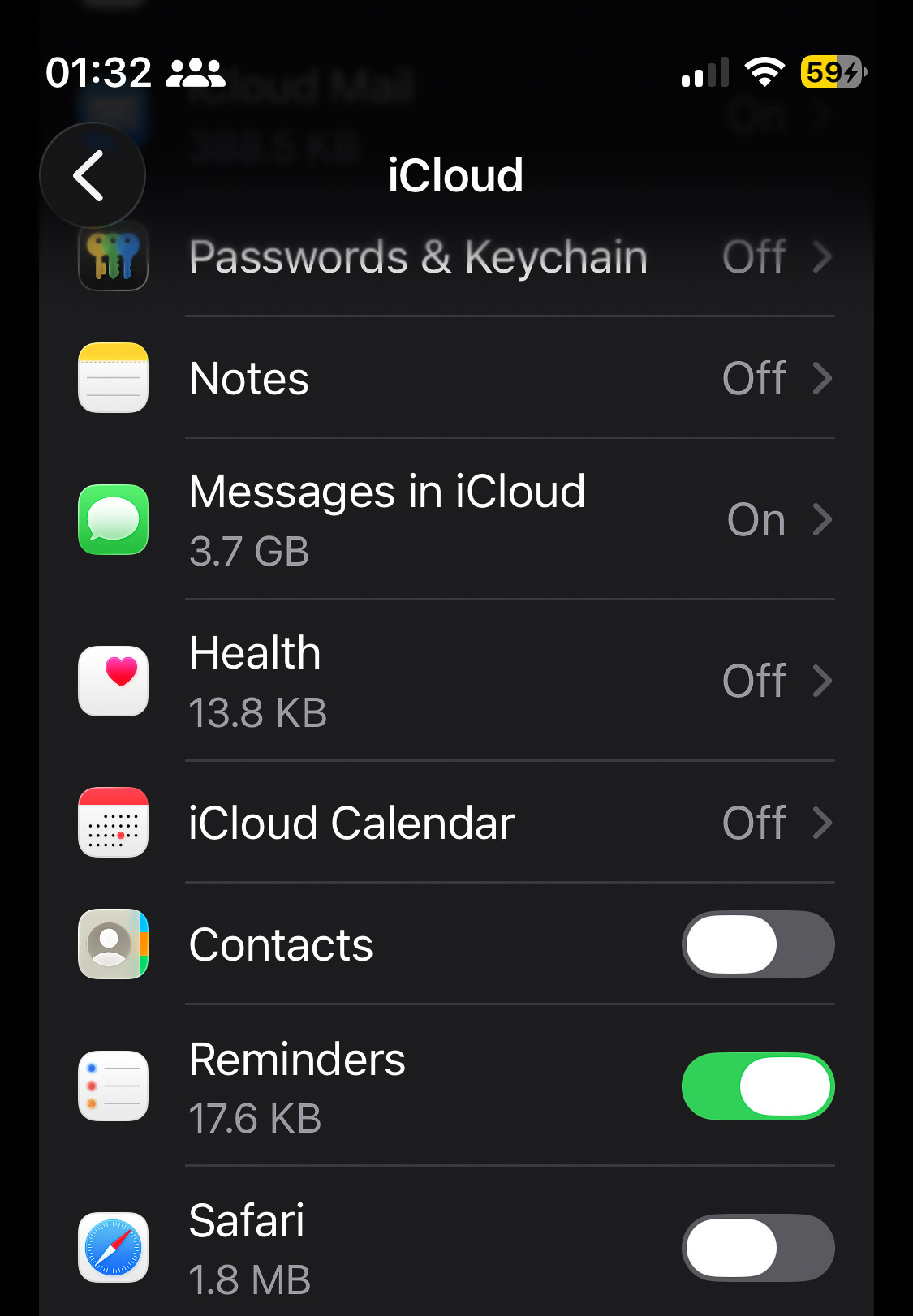
icloud_reminders.jpg


So I drag its slider to the "off" position only to receive the following warning:
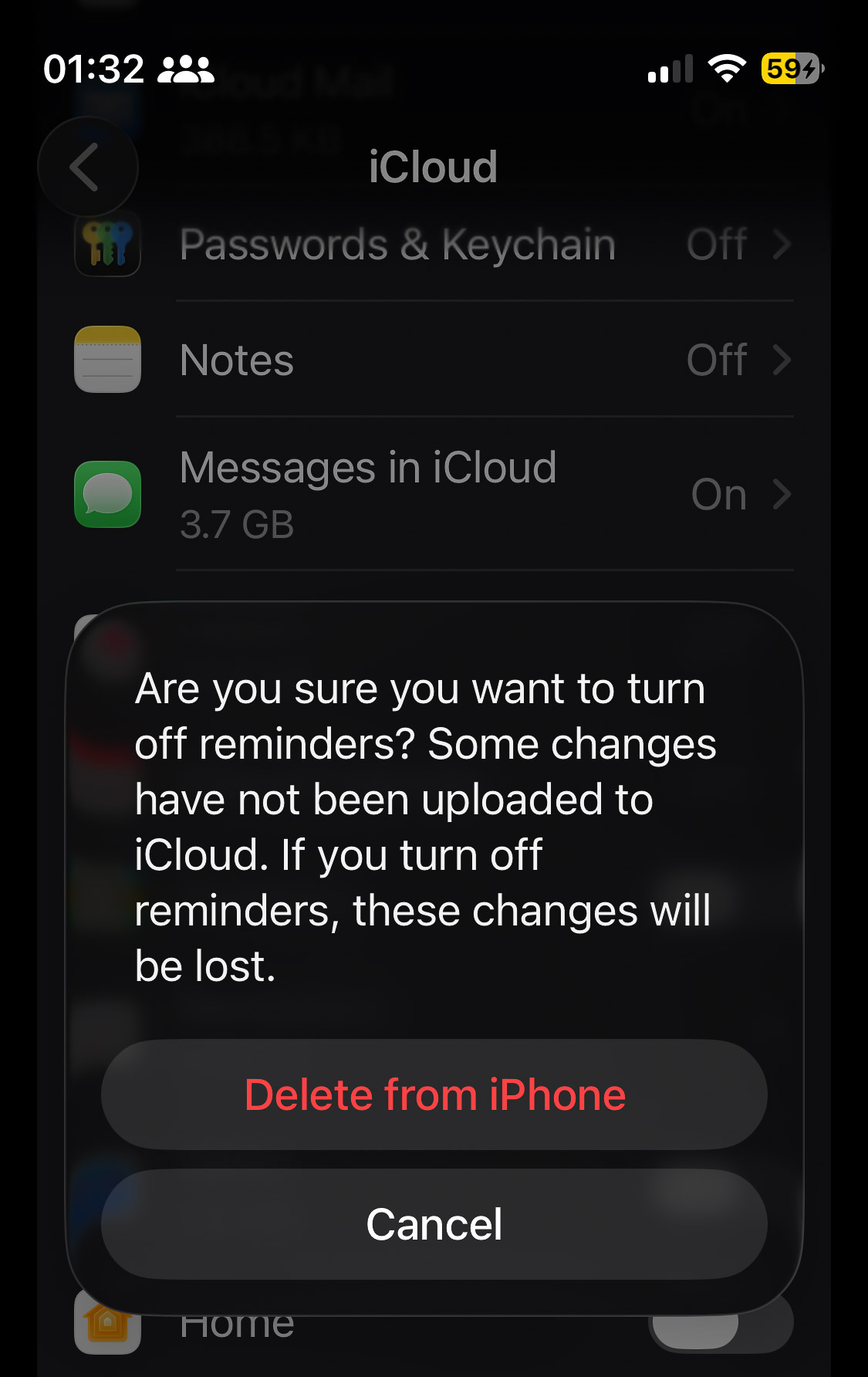
reminders_delete.jpg


I don't know how this happened, but I think it was when some other settings related to my Apple ID didn't seem to work properly, so I followed some instructions I found online suggesting that I sign out of my Apple account on my phone, then sign in again. I did that, and apparently Apple "assumes" by default that everybody wants to store everything in their iCloud, so my Reminders are now in the cloud (I don't want that, but keep all my reminders stored only locally on my phone).
Apple doesn't seem to give me the choice to keep a copy on my phone if I disable iCloud for Reminders. Is there a workaround?
I'm on iOS 26.5.2.
 
  • Like
Reactions: !!!
The closest you can get is to export the reminders as .ics files (can be done through Shortcuts) and then re-create them after disabling iCloud.
 
  • Like
Reactions: ignatius345
The closest you can get is to export the reminders as .ics files (can be done through Shortcuts) and then re-create them after disabling iCloud.

Do you have any more details on how to do this? I haven't been able to find anything online, after first having tried it myself in the Shortcuts app and not figuring it out there.

I do have another (partly working) workaround ....
This works on another iPhone (iOS 15) and iPad (iPadOS 18), but strangely, not on my current iPhone (iOS 26.5.2)

1) open the Reminders app
2) If you're not seeing the actual reminders, first select the appropriate List if you have several to choose from
3) Click on the "..." (without the quotes of course) symbol at the top right, then select "Print"
4) Click on the "Share" icon on the top, then select "Books"
This will save all the reminders in a PDF file which you'll find in the Books app.
Instead of sharing to the Books app you can share it to the Notes app, Files or whatever other options are available to your liking

I said "partly working" because I still have to copy/paste each reminder from the Books app and into a new reminder in the Reminders app. This is fine with a handful of important entries, but hardly a solution where you have perhaps hundreds or reminders which you want to restore.
Does your Shortcuts solution work in a similar manner (needing to manually copy/paste each reminder, one by one) or does it fully restore all the reminders in one go?
As far as I can tell there's no import feature of any kind in Reminders, so I'm guessing a solution involves some sort of hacking underneath the actual iOS user interface.
 
Last edited:
Does your Shortcuts solution work in a similar manner (needing to manually copy/paste each reminder, one by one) or does it fully restore all the reminders in one go?
As far as I can tell there's no import feature of any kind in Reminders
It is automated with caveats. There is a “New Reminder” shortcut action. The problem is it’s not straightforward to keep the time, without a bit of manipulation, or the reminder list. But keeping the simple text of the reminder is straightforward.
 
It is automated with caveats. There is a “New Reminder” shortcut action. The problem is it’s not straightforward to keep the time, without a bit of manipulation, or the reminder list. But keeping the simple text of the reminder is straightforward.

That's fine with me since I only use reminders as a place for taking all sorts of notes, so losing date/time doesn't matter at all.
If you don't mind, could you please post a screenshot of your ICS-exporting Reminders shortcut so I can recreate it here?
 
I have put the "save" (first 2 actions) and "load" (second part) in the same shortcut. It also shows filtering on the list, but you don't need to if you don't use lists. It will ask what folder to save the files in and then the "Get contents of [Ask Each Time]" you select the same folder.
 

Attachments

  • Reminders_Shortcut.png
    Reminders_Shortcut.png
    148.4 KB · Views: 17
  • Like
Reactions: NoBoMac
Thanks for sharing.
I understand it a little better now and have added a dialog for less confusion, where it tells you to select where to save
the reminders:
shortcut_03.jpg


So first this alert comes up:
alert1.png


But then another alert comes up which I don't understand what does or the purpose of. What's happening here?
Why does it pop up, and what should I click on? Seems to give the same results no matter what I do.
alert2.png


Apart from that I see that each reminder entry of the list in question is saved as a separate file. I can see this by opening the Files app, then opening the folder which I chose in the first step. Neat!

But what leaves me scratching my head is what do I do next?
How do I get those reminder entries imported into an empty list? You said something about having both "save" and "load" in the same script of yours, and I suspect it has multiple functions to keep the script smaller, but (for me) is more confusing. I'd like to create the script in such a way that I will still understand how to use it in a couple of years down the road even though I might have forgotten the details explained here.
 
Last edited:
But then another alert comes up which I don't understand what does or the purpose of. What's happening here?
Why does it pop up, and what should I click on? Seems to give the same results no matter what I do.
You need to tap “Choose” and then open the same folder you saved the reminders into.

You said something about having both "save" and "load" in the same script of yours, and I suspect it has multiple functions to keep the script smaller, but (for me) is more confusing. I'd like to create the script in such a way that I will still understand how to use it in a couple of years down the road even though I might have forgotten the details explained here.
Yes, I had both in one so it’d fit in one screenshot. Everything up to “Save Reminders” is the save shortcut, and then from “Get Contents of …” to the end is the load shortcut.

Specifically, it is using the file name to load into reminders. An alternative would be to write all the reminders out to a text file, then split it into each line and write those as new reminders. But it’s a little more complex.
 
  • Like
Reactions: NoBoMac
You need to tap “Choose” and then open the same folder you saved the reminders into.

Specifically, it is using the file name to load into reminders. An alternative would be to write all the reminders out to a text file, then split it into each line and write those as new reminders. But it’s a little more complex.

+1 on #1.

Alternate way to save and read the ics files: use the pathname of one of the reminders to determine the folder saved to, so no need to "Ask Every time" for folder name.

Generalized example attached.
 

Attachments

  • example.png
    example.png
    238.1 KB · Views: 4
Register on MacRumors! This sidebar will go away, and you'll see fewer ads.