Become a MacRumors Supporter for $50/year with no ads, ability to filter front page stories, and private forums.

driver49

macrumors newbie
Original poster
Who else is seeing this charming message since Tahoe upgraded to 26.5.2?
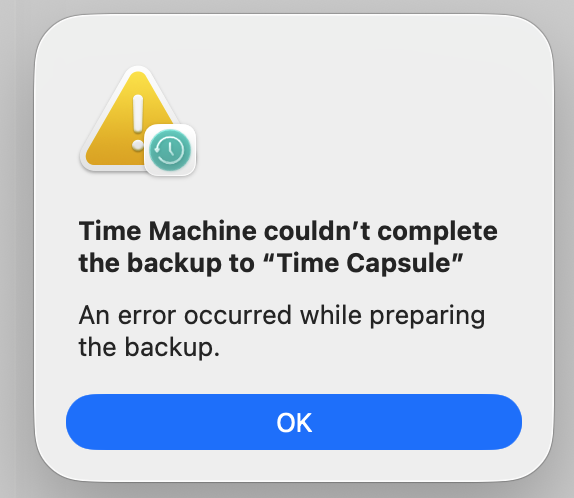
Time Machine .png

(before you ask: the destination "Time Capsule" is NOT the old Apple Airport Express w an HDD; this is just the name that I've given to the 10 TB SanDisk/G-Drive that I use for my backups.)

I have been using Time Machine since it was introduced back in around 2007. I've made whatever changes were required along the way to keep the backups up-to-date and started using my own external drive several years ago when Apple drop Support for airport express..

But in the past month, I have been getting this error message every time I try to do a backup. I do believe the problem started when I upgraded to the latest version of Tahoe, which is 26.5.2.

I have been to hell and back with AppleCare over this over the past week. Most of the difficulties stemmed from the changes they have made to the AppleCare protocols that make it near impossible to get to a senior advisor. But that's beside the point.

I have shared system logs now with engineering and I'm waiting to hear back, but that not be until next week.

So I guess I wonder for now if anybody else has gotten past that point and found a solution.

As of this writing, I am prepared to abandon Time Machine altogether and use a third-party backup application like carbon copy clone.

Thanks,

--PS
 
Using Time Machine on 26.5.2 with a NAS and with external HDD. So far so good, no issues at all on 26.5.2.

I haven't seen anything like that.

Any way to get SMART counters for the drive?
 
Running TM to a bus-powered SanDisk 8TB on Tahoe 26.5.2 (M3 Max 16") — no issues so far, so it's not a universal 26.5.2 regression. If your G-Drive is fed off a hub or a display's downstream USB, direct-connect for a run: bus-powered 10TB externals can dip amps during a big verify pass, and TM turns a one-second dropout into "couldn't complete."

Second thing worth trying if T2M2 flags the same file/path repeatedly rather than raw I/O — usually a cloud app writing to ~/Library/Group Containers mid-backup. Exclude that container in the TM prefs, re-run, then add it back once a full backup lands.
 
I've had an error regarding Safari backup for about two months, it will run for about 45 minutes and then the error message. I cannot wait for the Public Release so maybe that and the frozen mouse episodes will be worked out.
 
Hopefully, I am not jinxing the progress. I have made here by reporting on it too soon, but as I type, both of my computers are mid back up with Time Machine.

With the Mac Mini, troubleshooting with AppleCare we ran first aid and found that two of the four partitions on the source drive had issues. That may have been causing both the failed backups and the spontaneously ejected discs that I reported elsewhere.

I had a new high capacity hard drive waiting on my desk, and I copied all the data from the old HDD to this new one without any issues curiously. Neither of the discs kicked out while I was transferring that six or so terabytes of data.

Now Time Machine is running a back up of the data transferred to the new drive and that has been running for over an hour now without any interruptions.

On the MacBook Pro that took some help from the tech Support at Buffalo but they got a backup going to my NAS Drive and that has also been running for an hour or so now without any interruptions.

I was surprised to discover the Time Machine does give me an option of backing up once a day rather than every hour, so I have set that and yeah, maybe the backups are slow, but it serves my purposes for now and I wouldn't have to start from scratch by switching to a different vendor like CCC.

I'll submit a closing post when everything's done.

Thanks again for the help and support.

--PS
 
  • Like
Reactions: Howard2k
the 10 TB SanDisk/G-Drive that I use for my backups
From the capacity I’m going to assume this is an HDD. The APFS format does not do any defragmentation maintenance. This is fine for an SSD, but over time will take down an HDD as data becomes physically scattered all over the drive platters. What I’m doing now is swapping out my TM drive for another when it becomes too fragmented to use, setting aside the wonky one as an archive. That will in turn get reformatted when the time comes (~10-12 months, for me, in my limited experience so far).

AFAIK this will also come bite you eventually even if you’re using Carbon Copy Cloner (which @Fishrrman will be along any moment to tell you you MUST do or risk eternal damnation 🙂 ). Fact is, if you started using CCC with their recommended APFS workflow on an HDD, you’d eventually hit on the same fragmentation problem, as their documentation will tell you.

I was surprised to discover the Time Machine does give me an option of backing up once a day rather than every hour, so I have set that and yeah, maybe the backups are slow, but it serves my purposes for now
This is what I do. Hourly feels like overkill to me so I do daily.

I would add that building in another backup method needn’t supplant Time Machine entirely. I do a daily TM backup and also weekly and monthly ones via CCC.
 
Register on MacRumors! This sidebar will go away, and you'll see fewer ads.